

Collect images from a flow into a dataset
The images a line rejects are the best material to improve its model. The dataset-upload node sends the images a flow saved on the controller to a dataset of your project, where they wait to be labeled, and deletes them from the controller once they are up. In this guide you collect the packs of biscuits the inspection rejects and upload them to a dataset.
What you will learn
- How to save images with the names
dataset-uploadexpects - How to tell it which folder goes to which dataset
- How to start the upload and follow it
Before you start
You need a dataset to receive the images; here an empty segmentation dataset, «line_rejected_packs». You need its ID: open the dataset in «Datasets», it is the last part of the address, here rp-segm-line_rejected_packs. The flow streams packs of biscuits through a model, judges each one and lets only the rejected ones through the switch node «rejected»; see Decide pass or fail from the predictions.
1. Save the rejected packs
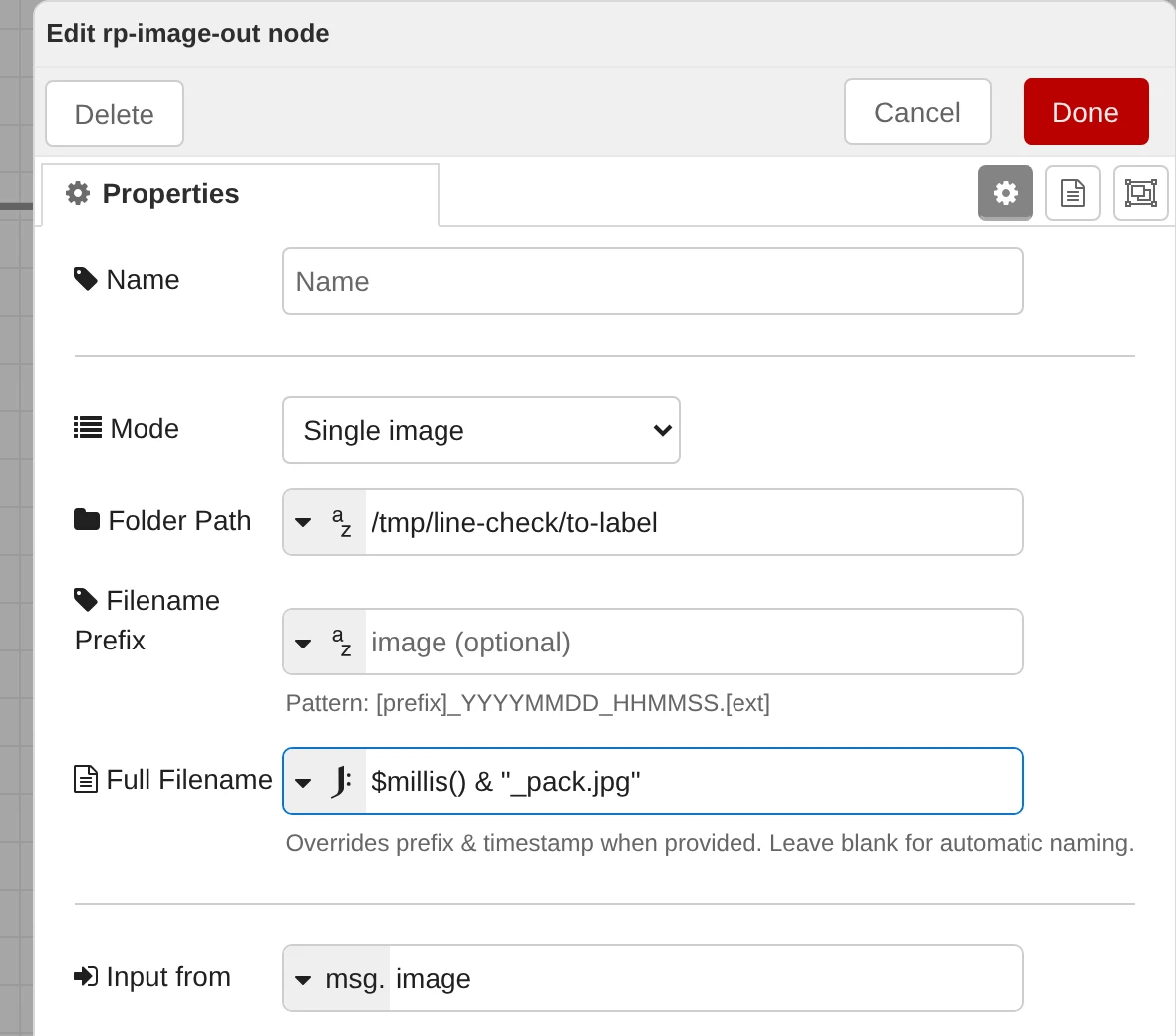
Add an rp-image-out node after the switch node and wire them. Open it, set «Input from» to msg.image and «Folder Path» to a folder for the images to upload, here /tmp/line-check/to-label.

2. Name them for the upload
dataset-upload takes the images whose name is the time, an underscore and a source name: 1763900000000_pack.jpg. The source name, pack, is what tells it which dataset each image goes to. Set the type of «Full Filename» to «JSONata», an expression worked out for each image, and write $millis() & "_pack.jpg": the time in milliseconds, then _pack.jpg.
3. Run the line
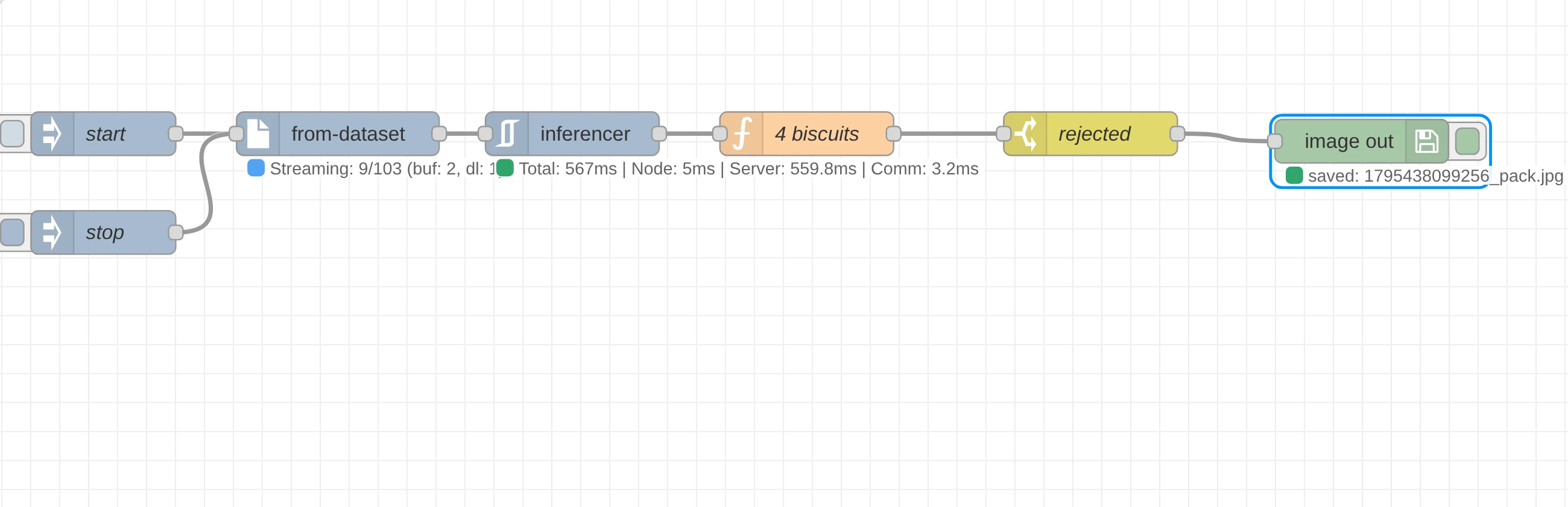
Click «Done» and «Deploy», and press the «start» inject node. The packs of the dataset go through the model; the rejected ones reach rp-image-out, which shows the name of each file it saves. Press «stop» when you have a few.
4. Add the upload node
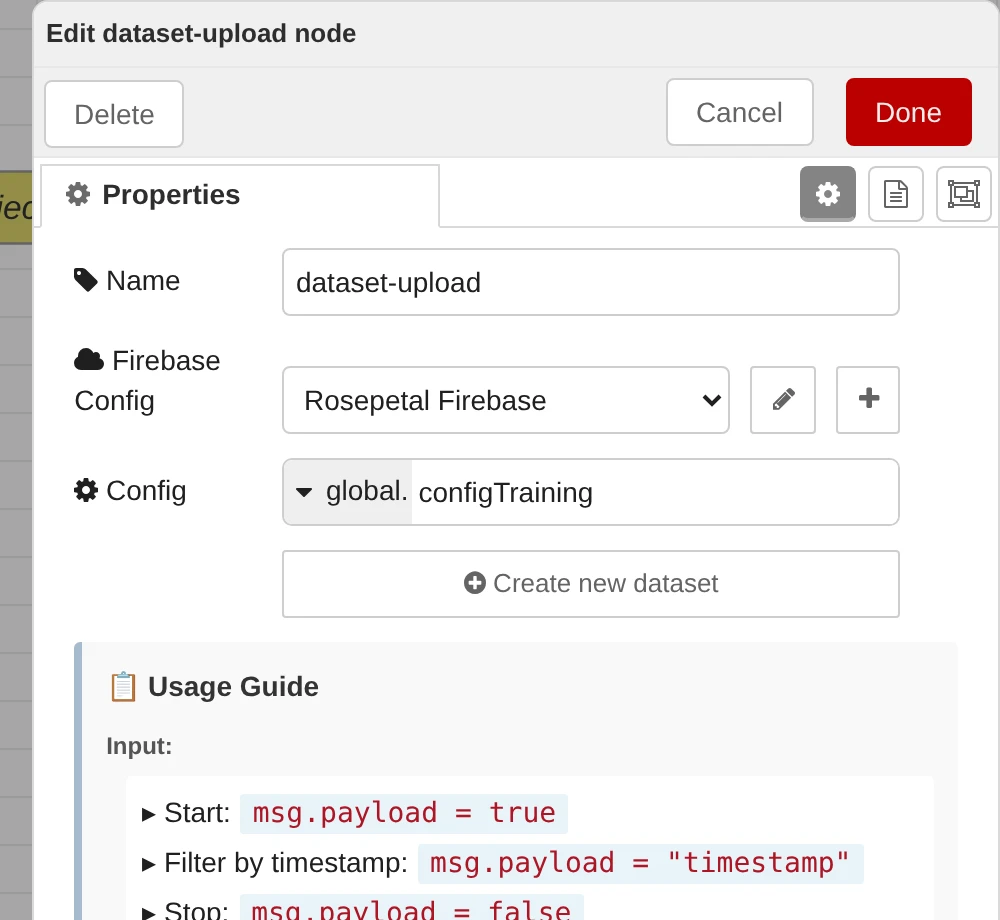
Add a dataset-upload node. It needs no wire from the line: it uploads when told to. Open it and choose the connection to your project in «Firebase Config», here «Rosepetal Firebase».
5. Say which folder goes to which dataset
«Config» is a list with one entry per folder: folder, where the images are; sourceName, the part of their name it matches; and dataset, the ID of the dataset they go to. Set its type to JSON and write it:
[{ "dataset": "rp-segm-line_rejected_packs", "folder": "/tmp/line-check/to-label", "sourceName": "pack" }]A flow that collects images from several cameras lists one entry per camera. The list can also come from the message or from a context variable, set by a panel.

6. Add a button to start the upload
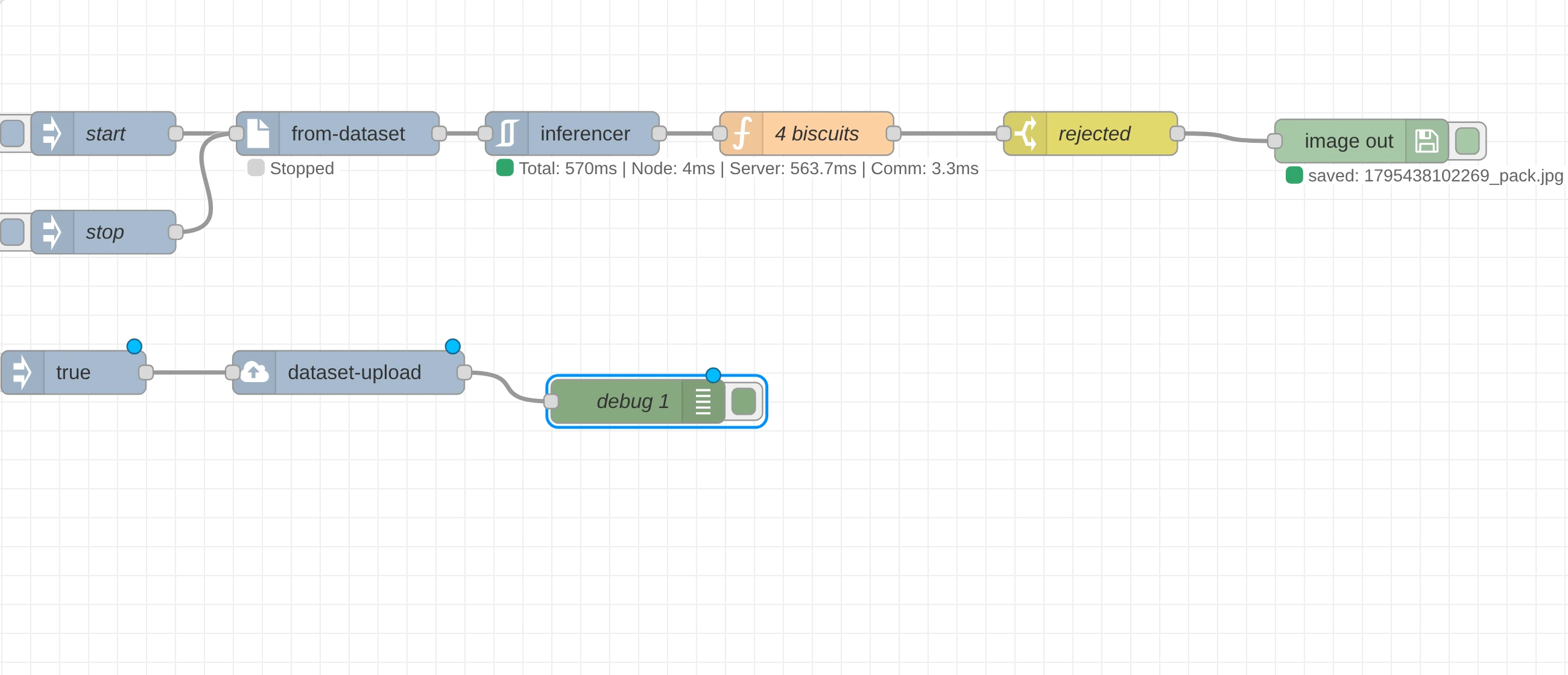
Click «Done». Add an inject node that sends the boolean true and wire it to dataset-upload: true uploads every image of the folders, false stops an upload half-way. Add a debug node after dataset-upload, set to show the complete message: it sends one message per image.
7. Upload them
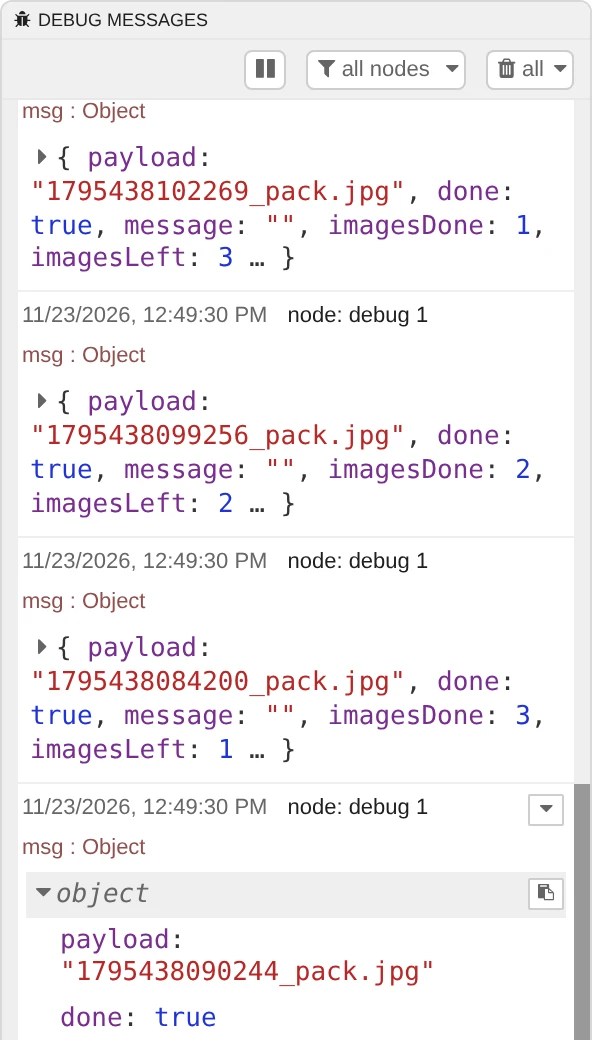
Deploy and press the inject node. For each image, the debug panel shows its name, whether it went up (done) and how many are left (imagesLeft). Each image uploaded is deleted from the controller; one that is already in the dataset is skipped.
8. Find them in the dataset
Open the dataset in «Datasets». The images are there, without labels, with the name they had on the controller. Label them and add them to the next training, so that the model learns from the packs it got wrong.

Good to know
- Only the new ones. An inject node that sends a time instead of
trueuploads only the images whose name contains it, for example"1763900"for one batch. - Uploads in the background. It uploads ten images at a time and can run while the line works. Send
falseto stop it. - From a panel. A button on a panel can start the upload, so that the operators send the images at the end of a shift: see Add buttons and selectors to a panel.
- What it uploads. Every image is uploaded as a PNG, with no tag, and it is the operator who labels it in the platform.
Next steps
Recorded on Rosepetal release 1.8.15, Node-RED 5.0.10.